
Ga naar de hoofdinhoud
Printen

Embedded content

Het is nu mogelijk om externe content rechtstreeks in LesLinq in te lezen via iFrame. Met deze verbetering kan je verschillende soorten externe bronnen integreren. Denk aan PowerPoint-presentaties, contactformulieren, video's of andere webpagina's. Deelnemers zien alles in één scherm, zonder omleidingen. De mogelijkheden zijn eindeloos.

Je vindt de mogelijkheid om Embedded Content toe te voegen in de Authoring Tool bij Elements → Embedded Content.
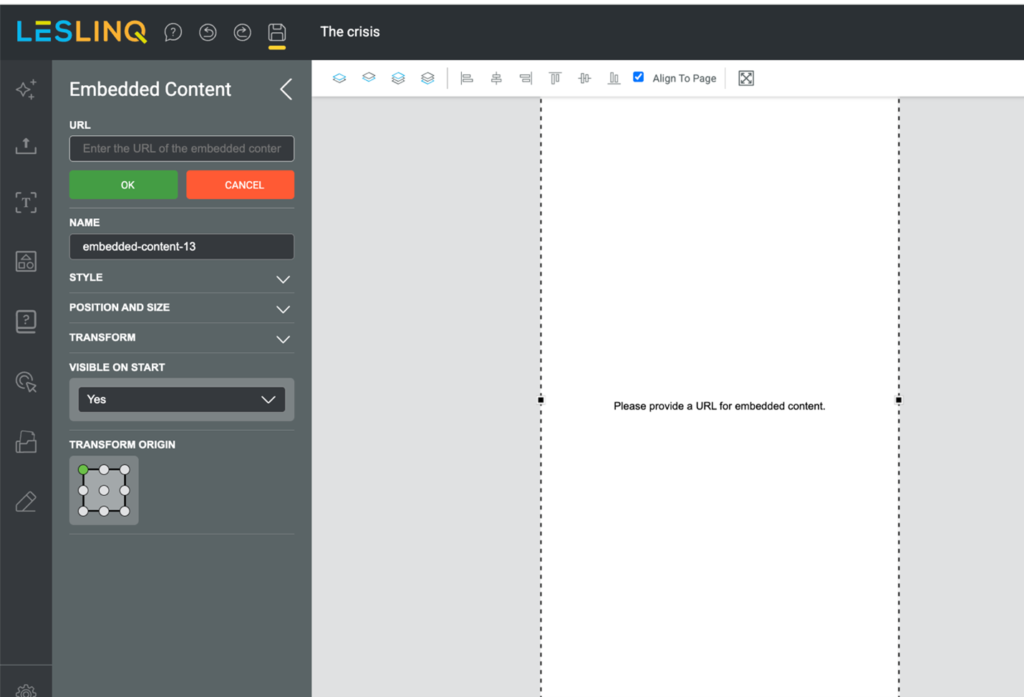
Een PowerPoint-presentatie embedden in LesLinq

Een van de mogelijkheden die Embedded Content biedt is het tonen van een Microsoft PowerPoint-presentatie via een iFrame. Door de presentatie te hosten op Microsoft OneDrive en in te lezen in LesLinq, blijft de presentatie volledig interactief binnen het platform. De voordelen:

  • Volledig interactieve PowerPoint binnen LesLinq
  • Geen bestandsdownloads nodig
  • Centrale updates (wijzigingen in OneDrive worden automatisch doorgevoerd)

Het embedden van een PowerPoint presentatie in LesLinq werkt als volgt:

Stap 1: Upload de PowerPoint naar OneDrive

  • Log in op je OneDrive-account.
  • Upload je PowerPoint-bestand (.pptx).
  • Klik na het uploaden op het bestand om het te openen in PowerPoint Online.

Let op: Het embedden van een PowerPoint bestand werkt het best vanuit een persoonlijke OneDrive. De embed-links van een persoonlijke OneDrive zijn namelijk volledig openbaar en ondervinden minder hinder van bedrijfsbeveiligingsprotocollen. Bij zakelijke OneDrive accounts zijn de bedrijfsbeveiligingsprotocollen strenger. SharePoint Online blokkeert dan vaak iFrames van externe domeinen of het vereist dat de bezoeker is ingelogd bij jouw organisatie.
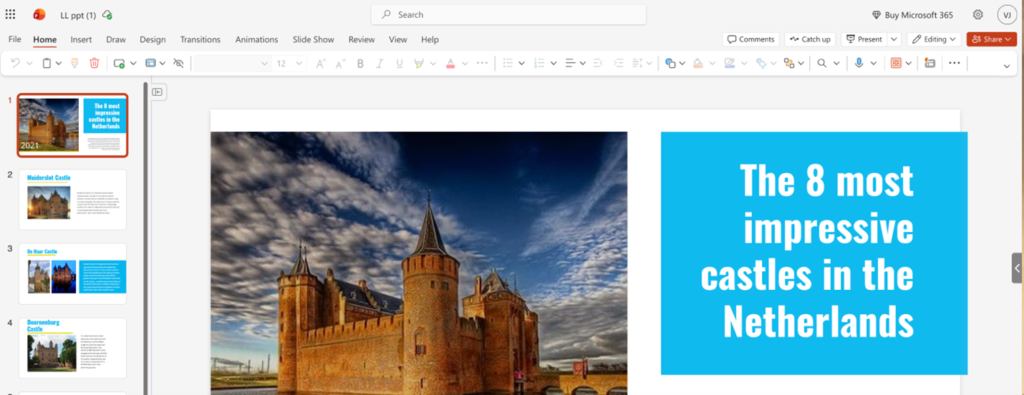
powerpoint in LesLinq

Stap 2: Genereer de embed-link

  • Ga in PowerPoint Online naar Bestand → Delen → Insluiten.
  • Stel de weergave-instellingen in indien gewenst (bijv. diasize, automatisch afspelen).
  • Klik op Genereren.
  • Kopieer de gegenereerde embedcode (iFrame-code).
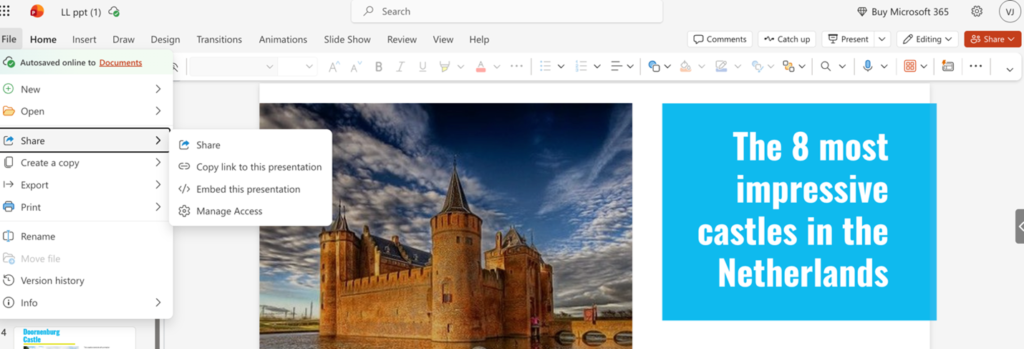
Powerpoint in LesLinq

Stap 3: Haal de bron-URL op

Zoek in de gekopieerde iFrame-code het src-attribuut, bijoorbeeld: https://onedrive.live.com/embed?...

Kopieer alleen de URL binnen src (niet de volledige iframe-tag).

Stap 4: Voeg het iFrame toe in LesLinq

  • Open je content in de LesLinq-editor.
  • Ga naar de sectie Elements.
  • Selecteer Embed iFrame.
  • Plak de gekopieerde src-URL in het iFrame-invoerveld.
  • Pas de afmetingen (breedte/hoogte) aan indien nodig.

Stap 5: Opslaan en voorvertonen

Sla je content op en bekijk via de preview functie of alles goed werkt.

Controleer of:

  • De dia's correct laden
  • De navigatie werkt (volgende/vorige)
  • Eventuele animaties of overgangen goed functioneren

Belangrijk

Let op dat de toegangsrechten van het OneDrive-bestand juist staan ingesteld.

Ga naar de hoofdinhoud
Printen

Embedded content

It is now possible to embed external content directly in LesLinq via iFrame. With this update, you can integrate a wide range of external sources — think PowerPoint presentations, contact forms, videos, or other web pages. Participants see everything in one screen, with no redirects. The possibilities are endless.

You can find the option to add Embedded Content in the Authoring Tool under Elements → Embedded Content.

Embedding a PowerPoint in LesLinq

One of the options the Embedded Content feature offers is to show a Microsoft PowerPoint-presentatie using an iFrame. By hosting the presentation on Microsoft OneDrive and embedding it into LesLinq, the presentation remains fully interactive within the platform. The benefits:

  • Fully interactive PowerPoint inside LesLinq
  • No need for file downloads
  • Centralized updates (changes in OneDrive reflect automatically)

Easily embed a PowerPoint presentation in LesLinq by following these steps:

Step 1: Upload the PowerPoint to OneDrive

  • Log in to your OneDrive account.
  • Upload your PowerPoint (.pptx) file.
  • Once uploaded, click on the file to open it in PowerPoint Online.

Note: Embedding a PowerPoint file works best from a personal OneDrive account. The embed links from a personal OneDrive are fully public and are less affected by corporate security protocols. Business OneDrive accounts have stricter security protocols. SharePoint Online often blocks iFrames from external domains, or requires the visitor to be logged in to your organisation.

powerpoint in LesLinq

Step 2: Generate the Embed Link

  • In PowerPoint Online, go to File → Share → Embed.
  • Configure display settings if needed (e.g., slide size, autoplay).
  • Click Generate.
  • Copy the provided embed code (iFrame code).
Powerpoint in LesLinq

Step 3: Extract the Source URL

From the copied iFrame code, locate the src attribute, for example: https://onedrive.live.com/embed?...
Copy only the URL inside the src (not the full iframe tag).

Step 4: Add the iFrame in LesLinq

  • Open your content in the LesLinq editor.
  • Navigate to the Elements section.
  • Select Embed iFrame.
  • Paste the copied src URL into the iFrame input field.
  • Adjust dimensions (width/height) if required.

Step 5: Save and Preview

Save your content. and preview the page.

Confirm that:

  • Slides load correctly
  • Navigation works (next/previous)
  • Any embedded animations or transitions function as expected

Important:
Ensure the OneDrive file sharing permissions allow access (e.g., “Anyone with the link can view”).