The post E-learning, compliance, and SMS: how does it work at LesLinq? appeared first on LesLinq.
]]>- With SMS, we have a phone number, which allows us to directly identify the learner. As a result, a login procedure is no longer necessary. The phone number serves as the login. This makes it easy and straightforward to enable hard-to-reach employees to engage in learning.
- The second reason is more technical. SMS distribution channels (the mobile phone providers) provide us with immediate delivery data. This means that we receive information about the delivered message – the e-learning content – right away. We can see when the message was sent and when it was delivered to the phone. We combine this data with the e-learning course data and log it into our Learning Management System (LMS). This gives us insight into the entire distribution process, which is valuable for compliance, and also helps us track results!
Curious about how this works? We’d be happy to provide you with a demo.
The post E-learning, compliance, and SMS: how does it work at LesLinq? appeared first on LesLinq.
]]>The post Can you apply Scenario-Based Learning in LesLinq? appeared first on LesLinq.
]]>“If someone provides an incorrect answer in LesLinq, can I include a link in the feedback to more information on the topic?”
Scenario-Based Learning:
Yes, in LesLinq, you can design ‘scenario-based learning.’ Because LesLinq offers 100% freedom in design and interaction (the ‘flow’ of the lesson), there are even multiple options available in this scenario.
In LesLinq, you can link an ‘action’ to everything. When you want to use scenario-based learning, you set up an action based on the given answer. If an answer is correct (or incorrect), you can set up a specific flow to, for example, a certain series of slides with more information, a video, images with or without audio, a piece of text, etc. The possibilities are vast.
How does this work?
ACTION
‘ON CORRECT’
‘ON INCORRECT’
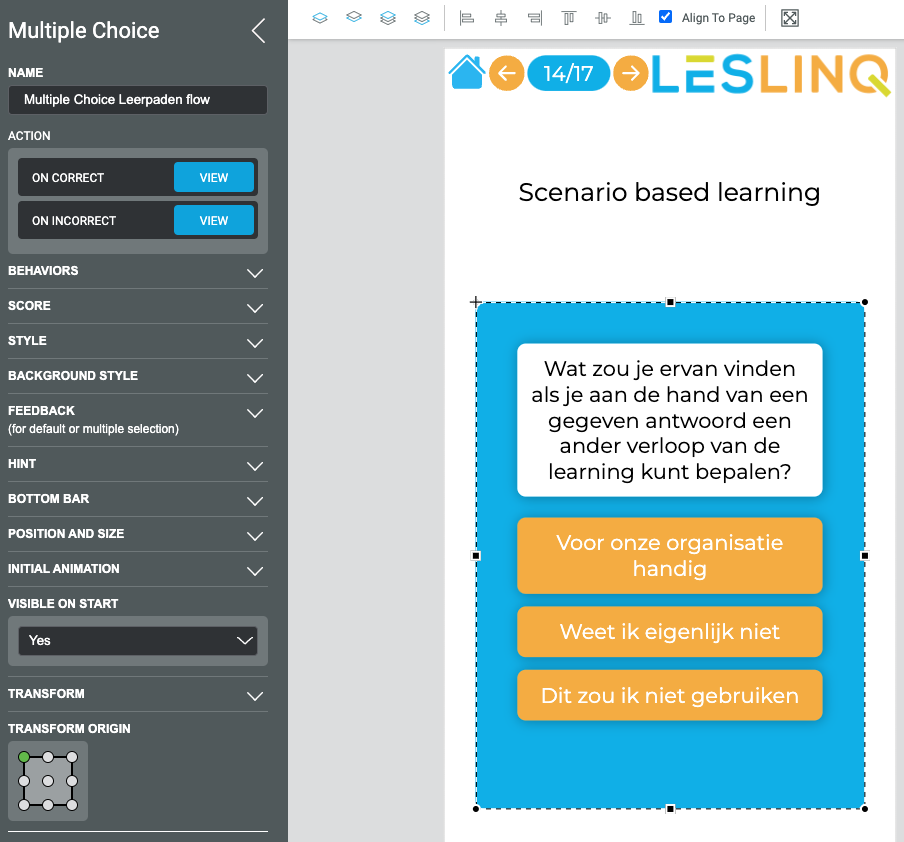
The action can be:
- Navigate To URL (external link)
- Navigate to Page (internal series of slides or individual slide with information)
- Change Property (visibility/placement/scale, etc.)
- Change Style (color/formatting)
- Play Animation (slide/fade/zoom)
- Play/Pause/Stop Audio
- Play/Pause/Stop Video
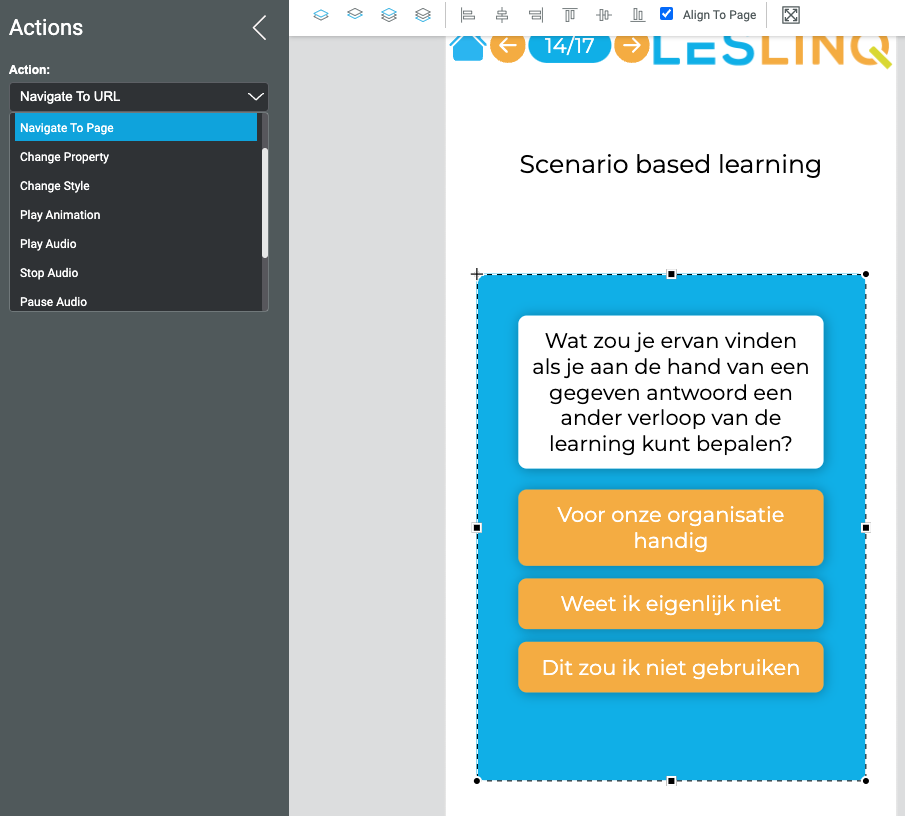
At the end of the flow, you can go back to the question, continue with the learning, or proceed with another learning path within the learning, and so on—whatever you prefer.
The post Can you apply Scenario-Based Learning in LesLinq? appeared first on LesLinq.
]]>The post Is LesLinq in English? appeared first on LesLinq.
]]>The post Is LesLinq in English? appeared first on LesLinq.
]]>The post How to use text-to-speech technology? appeared first on LesLinq.
]]>The post How to use text-to-speech technology? appeared first on LesLinq.
]]>The post After logging in, my projects don’t load. What now? appeared first on LesLinq.
]]>Why Clear Cache and Cookies?
Clearing the cache and cookies from a web browser is an important first-step for almost any troubleshooting for internet browsing. The ‘cache’ is a tool used by your internet browser to speed up the page loading process. However, sometimes it can cause a problem when websites are updated and developed as files saved in the cache may conflict with what’s actually coded into the website. Clearing cache and cookies is often the first step you take to solve problems. By clearing your cache regularly, you force your browser to start over and you can be sure to see the latest pages and data.
Keyboard Shortcut for Most Browsers
If you are using Internet Explorer, Edge, Google Chrome, or Mozilla Firefox you can quickly clear cache with a keyboard shortcut. While in your browser, press Ctrl + Shift + Delete simultaneously on the keyboard to open the appropriate window.
IMPORTANT: Be sure and close/quit the browser and restart it after clearing the cache and cookies.
The post After logging in, my projects don’t load. What now? appeared first on LesLinq.
]]>The post What actions can I add to an image? appeared first on LesLinq.
]]>- Navigate to URL
- Navigate to Page
- Change Property (move across x and y axis, scale, rotate, transparency or invisible)
- Change Style (switch to another image, change fill or stroke colour)
- Play Animation (blur, zoom and various options to move the image)
- Play Audio
- Stop Audio
- Pause Audio
- Play Video
- Stop Video
- Pause Video
In the Keyframes you can set at what time the action should occur.
The post What actions can I add to an image? appeared first on LesLinq.
]]>The post What is a Keyframe and how does it work? appeared first on LesLinq.
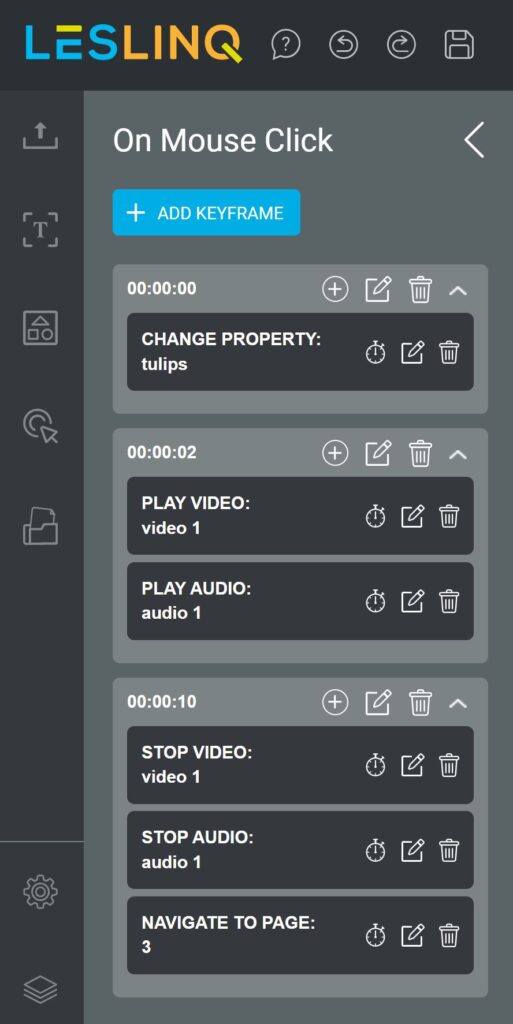
]]>Actions you can link to a Keyframe are:
- Navigate to URL
- Navigate to Page
- Change Property
- Change Style
- Play Animation
- Play audio
- Stop Audio
- Pause Audio
- Play Video
- Stop Video
- Pause Video
When you have set up multiple Keyframes with Actions, you can see them at a glance in the Action Settings. In short, a hugely useful feature, giving you many opportunities to create interactive content
The post What is a Keyframe and how does it work? appeared first on LesLinq.
]]>The post What is Initial Animation and how does it work? appeared first on LesLinq.
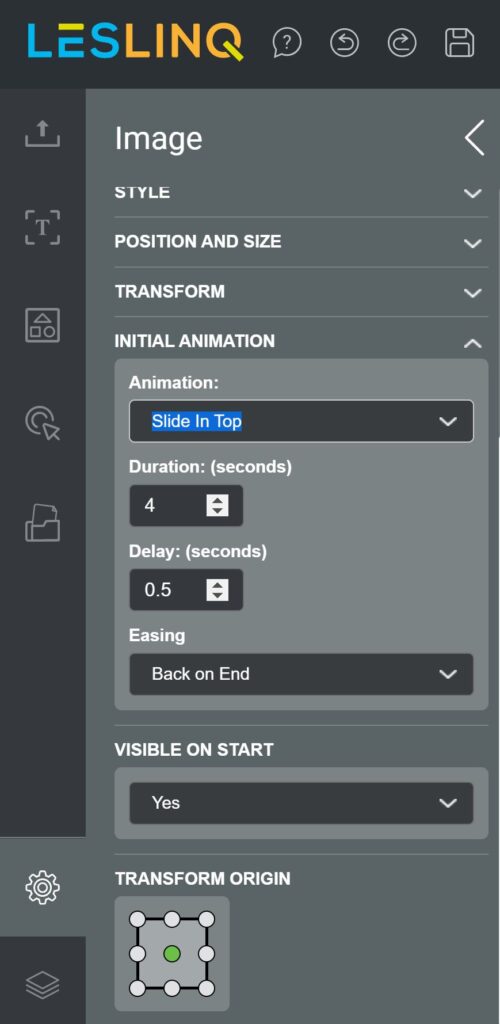
]]>Scroll down to the Inital Animation Settings and select:
- None
- Slide in Left
- Slide Out Left
- Slide in Right
- Slide Out Right
- Slide in Top
- Slide Out Top
- Slide in Bottom
- Slide Out Bottom
- Fade in
- Fade Out
- Zoom In
- Zoom Out
- Custom Fade
- Custom Zoom
At ‘Duration’, set the duration of the animation
At ‘Delay’ you determine at what time the animation starts
At ‘Ease’ you determine the animation settings at the beginning or end of the animation. You can choose from:
- None
- Ease on Start
- Ease on End
- Ease on Start and End
- Back on Start
- Back on End
- Back on Start and End
In this way you can set the Inital Animation of each element separately.
The post What is Initial Animation and how does it work? appeared first on LesLinq.
]]>The post Can I exclude a page from the default navigation? appeared first on LesLinq.
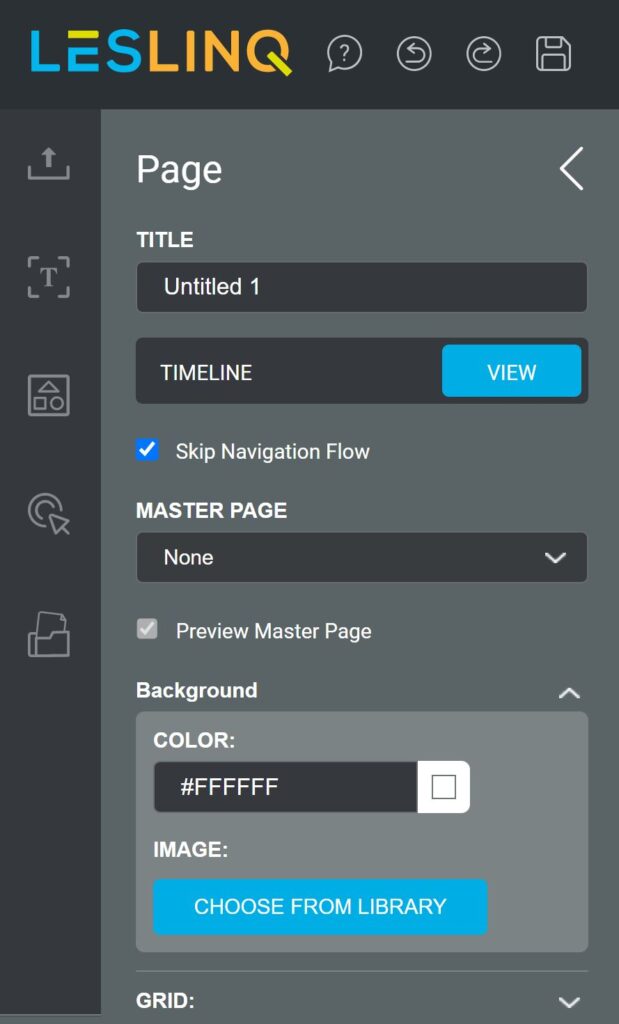
]]>You might, however, want to exclude a particular page from the default “navigation flow. This is possible. You can set this per page in the Page Settings. This can be done by checking the ‘Skip Navigation Flow’ checkbox. When the box is ticked, the page is removed from the navigation flow. It will now only be shown when you specifically link to this page (for example by setting the Actions box to navigate to this specific page in case of a certain action).
The post Can I exclude a page from the default navigation? appeared first on LesLinq.
]]>The post How do I add a hyperlink to an element (image, button, shape, video, etc)? appeared first on LesLinq.
]]>- In the canvas, double-click the element you want to add the hyperlink to (the image, button, shape, video, etc). The propery panel will now open.
- In Actions, click the VIEW button next to On Mouse Click.
Select ‘ADD KEYFRAME’.
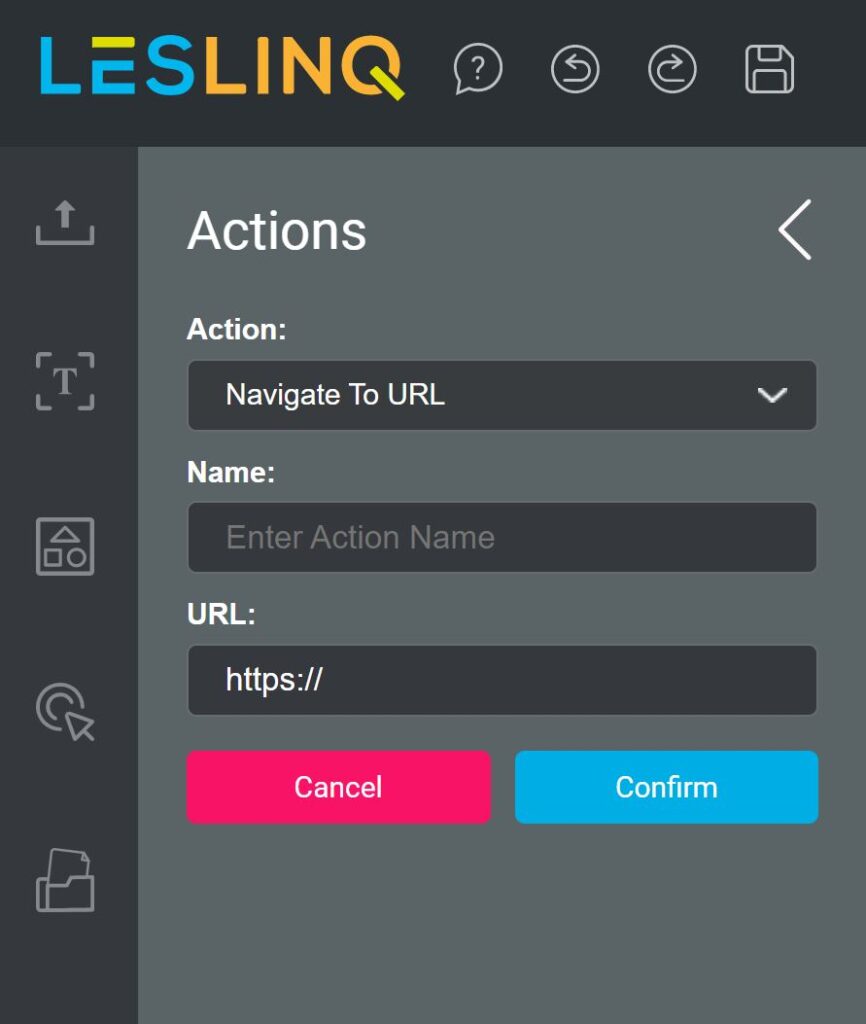
Select ‘ADD ACTION’. Optionally, under Time you can enter a time when you want the action to happen. When adding a hyperlink, Time will usually be set to 00:00:00.- Select ‘Navigate to URL’
- If desired, you can give the action a name (optional).
- Enter the URL you want to link to.
- Klick on ‘Confirm’.
- The hyperlink is now added and automatically opens in a new tab.
The post How do I add a hyperlink to an element (image, button, shape, video, etc)? appeared first on LesLinq.
]]>